

Not every photo starts as a masterpiece. Many images sit in our folders looking plain, dull, or unfinished. But with the right tools, even the most ordinary photo can be transformed into something artistic, eye-catching, and worth sharing. CapCut is widely known for video editing, but its Photo Editor—powered by smart AI features—makes it easier than ever to turn simple images into art. You don’t need design experience, expensive software, or hours of editing time. With just a few clicks and a creative prompt, you can create visuals that look hand-crafted, stylized, and professional. You can also try CapCut’s amazing AI Video Cropper feature to Crop Video of your AI design and impress your audience.
Why CapCut Photo Editor Is Perfect for Artistic Photo Transformations
CapCut Photo Editor combines simplicity with powerful AI tools. Instead of manually adjusting dozens of settings, you guide the editor using ideas and prompts. The AI takes care of the heavy lifting—enhancing details, refining composition, and applying artistic styles that feel natural rather than over-processed.
Here’s why creators love using CapCut for artistic photo edits:
- AI-powered creativity: Generate stylized visuals with text prompts instead of complex tools
- Beginner-friendly layout: Clean interface with easy navigation
- Flexible editing options: Fine-tune colors, backgrounds, text, and layouts
- High-quality exports: Perfect for social media, branding, or personal projects
Whether you want to create digital art, artistic portraits, product visuals, or aesthetic social posts, CapCut gives you the freedom to experiment without pressure.
How to Turn Ordinary Photos into Art with CapCut Photo Editor
Step 1: Open CapCut Desktop and explore the AI Design feature
Start by launching CapCut Desktop on your computer. Once the home screen loads, open the left-hand panel and select the AI Design option. This section is where CapCut’s creative magic happens. The AI Design tool is built to help you create and enhance visuals for many purposes—artistic photos, branding images, posters, character illustrations, and more. Instead of editing everything manually, you describe what you want, and the AI generates a polished visual based on your idea. Think of this step as setting the stage. You’re entering the creative workspace where ordinary photos begin their transformation into art.
Step 2: Upload your photo and guide the AI with a creative prompt
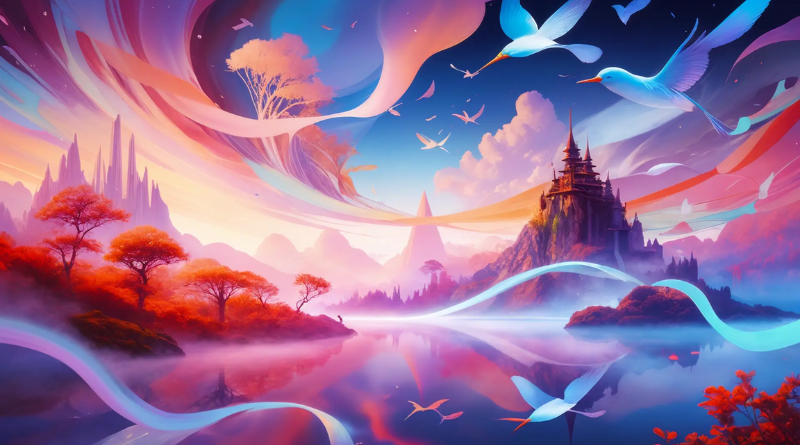
Once you’re inside the AI Design tool, it’s time to bring in your photo. Click Upload Image and select the picture you want to turn into art. This can be a portrait, product photo, nature shot, or even a simple everyday image. Next comes the most important part: the text prompt. This is where you tell the AI how you want your photo to look. Be descriptive and clear. Mention the style, mood, lighting, colors, and overall feeling you want to achieve.
You can replace the example below with your own idea, but here’s a sample prompt to guide you: “Create a refined, artistic image with a modern luxury feel. Enhance details, apply soft lighting, and place the subject against a clean, elegant background with smooth gradients.”
Adding a reference image or being specific in your wording helps the AI generate more accurate and visually pleasing results. Don’t be afraid to experiment—small changes in wording can lead to very different artistic outcomes.
Step 3: Enhance, customize, and export your final artwork
After CapCut generates your image, you’re not locked into the first result. This is where you can add your personal touch and refine the artwork further.
Use CapCut’s editing options to:
- Adjust or replace the background
- Tweak brightness, contrast, or color balance
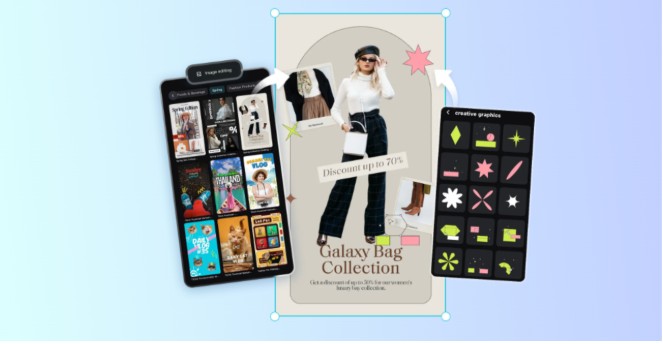
- Try AI outpainting to extend the image edges smoothly
- Add text, shapes, or stickers for a creative layout
Once everything looks the way you want, click Download. Choose your preferred file format—JPEG, PNG, or PDF—and select the size that fits your needs. CapCut ensures your exported image stays sharp and high-quality. You can also share your artwork directly to platforms like Instagram or Facebook, making it easy to showcase your creativity instantly.
Tips to Make Your Artistic Photos Stand Out
To get the best results when turning photos into art, keep these tips in mind:
- Start with a clear image: Even simple photos work better when they’re not blurry
- Use expressive prompts: Describe mood, tone, and style clearly
- Experiment freely: Try multiple prompts and variations
- Keep it balanced: Artistic doesn’t mean overcrowded—simplicity often looks better
- Refine gradually: Small edits can make a big visual difference
The more you practice, the better you’ll understand how CapCut’s AI responds to different ideas.
Conclusion
Turning ordinary photos into art no longer requires advanced design skills. With CapCut Photo Editor, creativity becomes accessible to everyone. Its AI-driven tools help you reimagine everyday images into artistic visuals that feel thoughtful, stylish, and professional. By following these simple steps, you can explore new creative styles, enhance your personal or brand visuals, and bring fresh life to photos you once thought were too plain to use. If you’re looking for an easy, fast, and creative way to elevate your images, CapCut Photo Editor is a powerful place to start.